Tutorial
Once ppol is installed, all you have to do is:
- prepare your data
- specify your settings in the
config.ymlfile, and - execute
ppol.
Data preparation
Your waveform data should all comply with the following conditions:
- all files in question must be located within one top directory (how sub-directories are organised is not important)
- all files in question must follow a consistent file naming (not need to have station specified, but overall consistent)
- all files in question must be readable as seismological files (e.g. MSEED, SAC, …)
- all files in question must be ‘clean’ (i.e., each file must contain its correct header information)
- all files in question must be span an orthogonal space (i.e. two horizontals and one vertical)
- all files in question may be corrected to physical units (not necessary though, depending on instrument response)
What do I mean with ‘all files in question ..’? I mean, not all files in the top directory have to be seismological files and thus follow the above conditions. Rather, only those seismological files within the top directory you plan to use (in question) have to follow the above conditions – all other files are ignored, even non-seismological files that by chance follow the specified naming pattern.
By the way, it does not matter if the data of the respective seismometer components are each within separate files, or if the two, three or more (hydrophone etc ..) components are within one combined file for a specific period. That is because each file in question is attempted to be read via ObsPy’s read(headonly=True) function and the found header information (network, station, location, channel, starttime, and endtime) are used to assemble the right data for the measurements (that’s precisely why your data’s header information need to be ‘clean’).
- NOTE:
- If you are unsure about your data’s haeader information and would like to peek into them for a quick check,
have a look at
ppol.util.headercheck_random().
Setup config.yml
This file – that you downloaded along with the ppol package – allows you to specify all needed options.
For each station, you want to have a seperate config file, as certain parameters (like filters, etc..) may
differ for different stations (for scientific reasons).
Go ahead, open the config file and enter your settings – they should be straightforward.
For a detailed parameter disucssion, see Config.yml.
Code execution
In general, there are two ways to run ppol. Either via:
- terminal command, or
- Python interpreter
For both options, you must beforehand activate the environment you specified during Installation.
Via terminal command
This is likely your preferred way of using the ppol. Simply run:
ppol main absolute_path/to/config_file.yml
You’re done!
This main mode created three different files:
- *results_all.txt (containing ALL measurements done)
- *results_retained.txt (containing RETAINED measurements only)
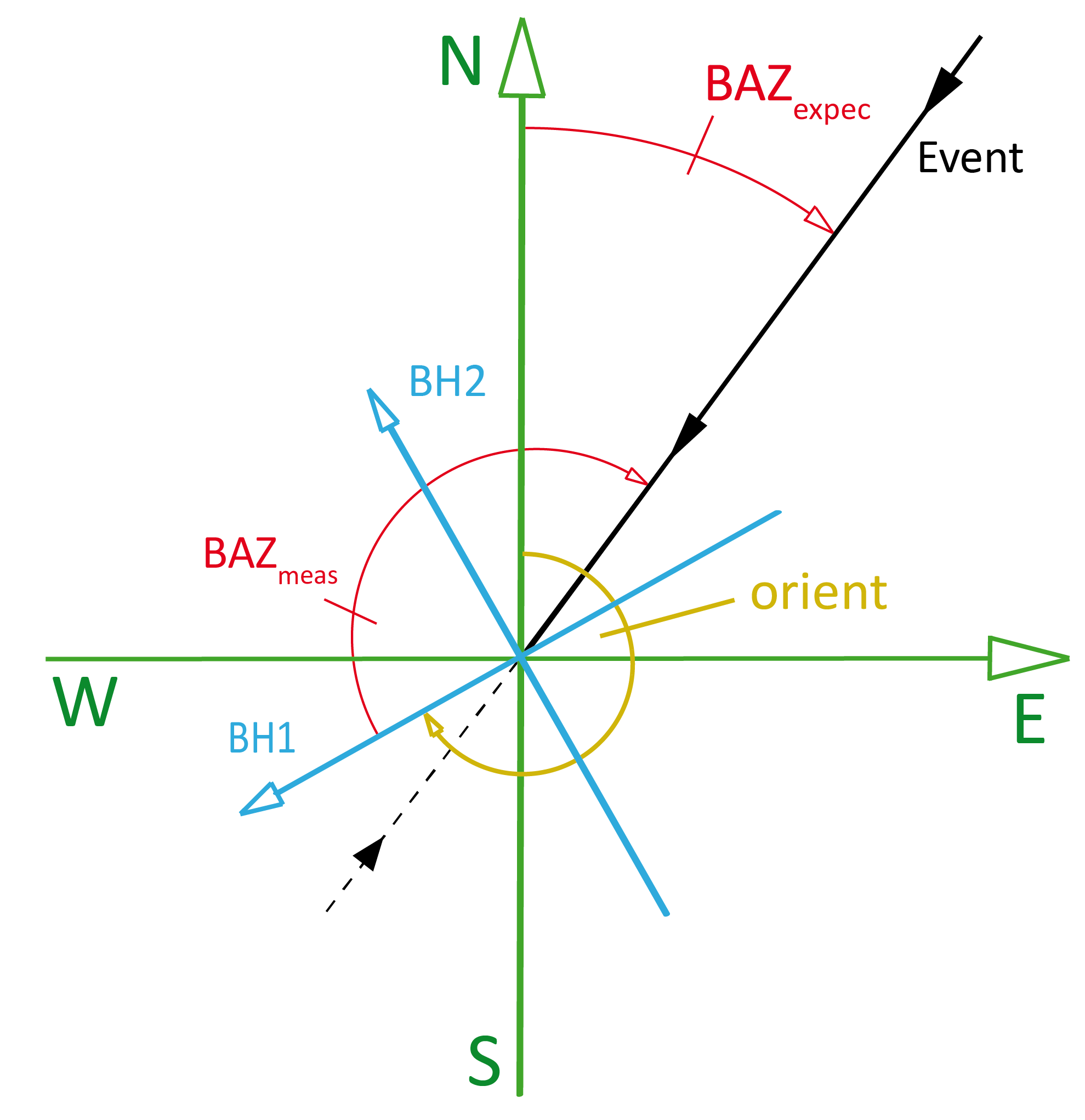
- *results_retained.pdf (showing the station orientation based on the retained measurements)
Go ahead, look at these files! If you are lucky your work is already done. :)
…
If you are less lucky (e.g. your data seem to call for a more careful analysis), you may want to include / exclude certain measurements for the final statistics (means, fits, errors) to improve your calculation of station orientation.
Lucky you, no problem!
You must not re-calculate all individual ppol measurement via ppol_main,
it is enough to just go back to your config.yml and change the options in the statistics block to what
you would like (e.g. change conditions, culling, and/or sigmas). Note that in the conditions block you can
add any column from *results_all.txt file.
…
Now that you may have done that, simply re-evalualate the already made measurements by running:
ppol eval absolute_path/to/config_file.yml -r absolute_path/to/results_all.txt
Sweet, you just re-calculated the whole station statistics in a few seconds!
The *results_all.txt remained the very same (with the exception that the statistic results are appended at the end as commented lines), the *results_retained.txt and *results_retained.pdf files have been updated! Play around with the statistics settings until you are satisfied with what you get! Once you have decided that’s it, congratulations, you have found your final station orientation – time for the next station!
- NOTE:
Each time you run
ppol main .., all measurements are performed according to your specified options in the config.yml, and thenppol eval ..is internally once called to produce the statistics.Each time you run
ppol eval ..on a specific *results_all.txt, the resultant statistics output is appended to this file. That means so you can compare differentppol eval ..runs (statistics) with each other – even after a long time. Nice!Each time you run
ppol eval ..on a specific *results_all.txt, ONLY the lastppol eval ..run (statistics) is appended to *results_retained.txt, so in one view you can see what these retained measurements delivered as station orientations. Nice!When you run
ppol eval .., only the statistics block is read from the config.yml, meaning changes in all other blocks will have no effect as they would require to re-do all measurements, which you can do of course by re-runningppol main ...When running
ppol ..via terminal command, it doesn’t matter if you put the file names into quotation marks or not, they are understood as Python strings anyway. ;)You can only run
ppol main ..orppol eval ..via terminal command, for access to other parts of the toolbox you must enter your Python interpreter and import the respective modules (see Boni).You can access ppol’s help function from terminal via
ppol --help(or equallyppol -h).Please do not rename the file endings of the output txt files (*.txt), i.e., only rename the station bit of these files if you must. This is because the file endings (_all.txt & _retained.txt) are hard-coded in the
ppolpackage and are needed to create the correct outputs.
Via Python interpreter
Open your Python interpreter from the correct environment (see Installation) and do:
from ppol.run import ppol_main

config_file = 'absolute_path/to/config_file.yml'
ppol_main(config_file)
or similarly for re-evaluating the statistics:
from ppol.run import ppol_eval

config_file  = 'absolute_path/to/config_file.yml'
results_file = 'absolute_path/to/results_all.txt'
ppol_eval(config_file, results_file)
The logic of how to use these two functions is the same as described above in via terminal command.